

How to Master Playwright Automation: A Practical Guide with Real Projects

Playwright has emerged as a formidable player in the test automation landscape, amassing 1.2 million weekly downloads and 23,200 active users since its initial release in January 2020. This open-source test automation library from Microsoft supports multiple programming languages including Java, Python, C#, and NodeJS, removing traditional language barriers that often complicate automation adoption.
The technical architecture of Playwright differs fundamentally from conventional testing tools. It establishes a single WebSocket connection with rendering engines, resulting in exceptional stability and performance improvements. This design enables seamless cross-browser testing across Chromium (Chrome, Edge), WebKit (Safari), and Firefox environments, ensuring consistent behavior across platforms.
Playwright’s parallel testing capabilities allow simultaneous test execution across multiple browsers, substantially reducing overall test completion time. The framework includes intelligent auto-waiting mechanisms that effectively eliminate flaky tests by automatically waiting for elements to become actionable—no more arbitrary timeouts or sleep commands cluttering your code.
The integration capabilities with CI/CD tools like GitHub Actions, Jenkins, and CircleCI make Playwright particularly valuable for continuous testing workflows. With 48.4k stars and 2.4k forks on GitHub, the testing community has clearly recognized Playwright’s effectiveness for modern web application testing.
Throughout this guide, we’ll examine the practical implementation of Playwright, from initial setup to writing your first tests and building real-world projects. Our scientific approach will demonstrate Playwright’s capabilities through concrete examples rather than theoretical concepts. By the conclusion, you’ll possess the practical knowledge required to create reliable, efficient tests for your own applications.
Getting Started with Playwright: Installation and Project Setup
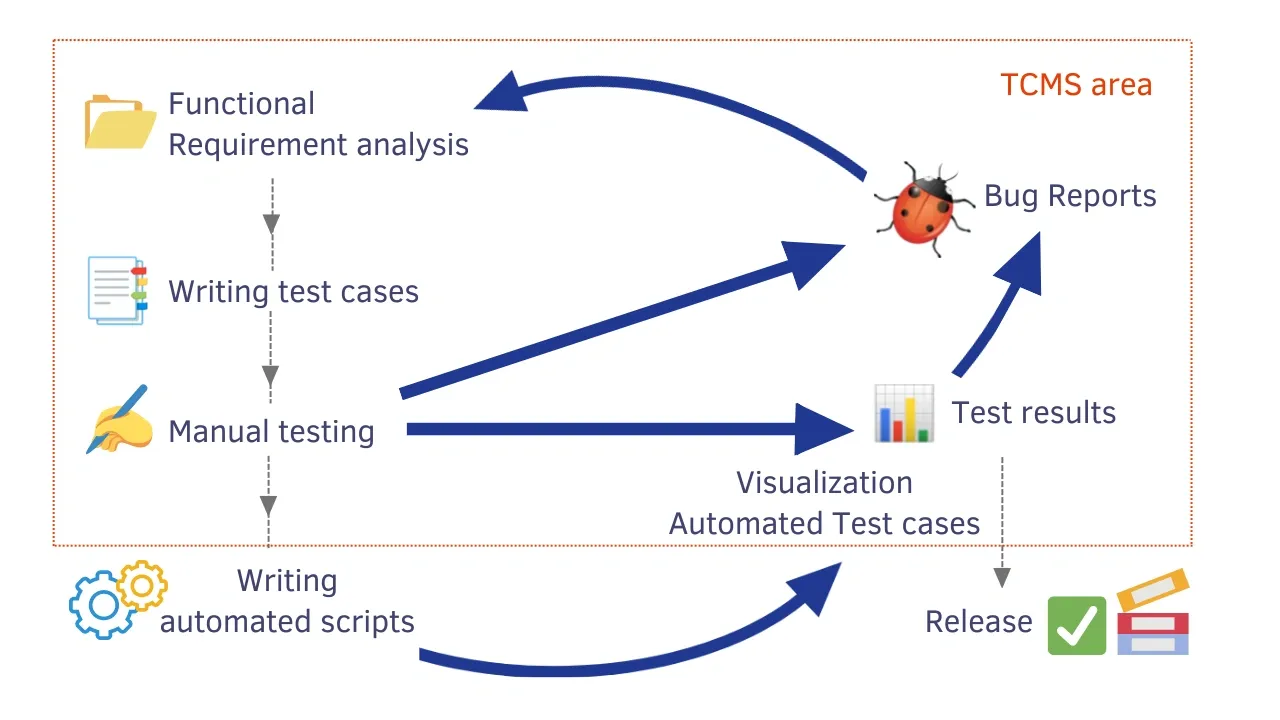
Image Source: Testomat
Setting up Playwright requires minimal technical configuration despite its sophisticated capabilities. The framework’s design philosophy emphasizes developer experience without compromising functional power. Let’s examine the installation process systematically to establish a solid foundation for your automation projects.
Installing Playwright via CLI and VSCode
Before proceeding with installation, verify you have Node.js (version 14 or higher) on your system. Run these commands in your terminal to confirm:
node -v
npm -v
Playwright provides two installation approaches, each suited to different workflow preferences:
Method 1: Command Line Installation
First, create a dedicated project directory:
mkdir learn-playwright
cd learn-playwright
Initialize your Playwright project using your preferred package manager:
npm init playwright@latest
# or
yarn create playwright
# or
pnpm create playwright
The installation wizard prompts you to:
- Select TypeScript or JavaScript (TypeScript offers superior type safety)
- Specify your tests directory name
- Configure GitHub Actions workflow
- Select browser engines to install
Method 2: VSCode Extension Installation
For those preferring an integrated development environment:
- Open VSCode and access the Extensions panel
- Search for “Playwright Test”
- Select “Playwright Test for VS Code by Microsoft” and install
- Press CTRL + SHIFT + P to open the command palette
- Type “Install Playwright” and select the corresponding option
- Choose your preferred browsers
- Complete the installation process
The VSCode extension enhances productivity through integrated test execution, debugging capabilities, and visual project management.
Understanding the Default Folder Structure
Playwright creates an organized project architecture following testing best practices:
my-playwright-project/
├── .github/               # GitHub configurations (if selected)
├── node_modules/          # Installed dependencies
├── tests/                 # Your test files go here
│   └── example.spec.ts    # Example test file
├── tests-examples/        # Additional example tests
│   └── demo-todo-app.spec.ts
├── package.json           # Project dependencies and scripts
├── package-lock.json      # Dependency versions lock file
└── playwright.config.ts   # Playwright configuration
This structure separates concerns effectively—test files remain distinct from configuration and dependencies. The tests directory serves as the primary location for your test files, conventionally using the .spec.ts extension. The tests-examples directory contains sample implementations demonstrating Playwright’s capabilities on a reference todo application.
Creating playwright.config.ts for Custom Settings
The playwright.config.ts file functions as the control center for test execution parameters. This configuration file manages browser selection, parallelism settings, timeouts, and numerous other execution variables.
A standard configuration example:
import { defineConfig, devices } from '@playwright/test';

export default defineConfig({
  // Directory containing your test files
  testDir: 'tests',

  // Run tests in parallel for faster execution
  fullyParallel: true,

  // Fail the build on CI if test.only is left in the code
  forbidOnly: !!process.env.CI,

  // Retry failed tests on CI environments
  retries: process.env.CI ? 2 : 0,

  // Control parallel execution
  workers: process.env.CI ? 1 : undefined,

  // Select reporting format
  reporter: 'html',

  // Default settings for all tests
  use: {
    // Base URL for relative navigation
    baseURL: 'http://localhost:3000',

    // Enable headless mode (set false to see browser UI)
    headless: true,

    // Capture traces for debugging
    trace: 'on-first-retry',
  },

  // Configure browser projects
  projects: [
    {
      name: 'chromium',
      use: { ...devices['Desktop Chrome'] },
    },
    // Add Firefox, WebKit projects as needed
  ],
});
To observe browser interactions during test execution, modify the headless parameter:
use: {
  headless: false,
}
The configuration system supports extensive customization options:
- Test timeout thresholds
- Visual debugging settings (screenshots/videos)
- Browser viewport dimensions
- Test filtering parameters
- Reporting preferences
This flexibility enables Playwright to adapt to diverse testing requirements across different environments, from local development to continuous integration pipelines.
The setup process demonstrates Playwright’s fundamental design principle: providing sophisticated capabilities through a straightforward implementation interface. This balance of power and simplicity distinguishes Playwright from other automation frameworks that sacrifice one for the other.
Writing Your First Playwright Test Case

Image Source: SDET Unicorns
Playwright’s test syntax offers a logical, methodical approach to browser automation that aligns perfectly with scientific testing principles. The framework’s design facilitates both simple interactions and complex scenarios through a consistent, predictable API.
Core Testing Functions and Page Object Pattern
Playwright tests rely on two fundamental functions that form the backbone of your test architecture: test() and expect(). The test() function establishes a discrete test case with appropriate scoping, while expect() creates assertions that verify elements and page behaviors match expected outcomes.
Import these functions at the top of your test file to establish the testing foundation:
import { test, expect } from '@playwright/test';
The basic test structure follows a clear pattern of action and verification:
test('basic test', async ({ page }) => {
  await page.goto('https://playwright.dev/');
  const name = await page.innerText('.navbar__title');
  expect(name).toBe('Playwright');
});
Playwright’s assertion system includes two distinct types that serve different verification needs:
- Auto-retrying Assertions: Wait automatically for conditions (5 seconds default), requiring
awaitsyntax - Generic Assertions: Execute immediately without waiting mechanisms, used without
await
For applications with complex interfaces, the Page Object Model pattern provides significant structural advantages. This established design pattern separates page interactions from test logic, creating a more maintainable architecture as your test suite grows:
export class PlaywrightDevPage {
  readonly page;
  readonly searchInput;

  constructor(page) {
    this.page = page;
    this.searchInput = page.locator('input[name="q"]');
  }

  async goto() {
    await this.page.goto('https://playwright.dev');
  }

  async search(text) {
    await this.searchInput.fill(text);
    await this.page.keyboard.press('Enter');
  }
}
This separation creates a clean abstraction layer that allows test cases to focus on business logic rather than implementation details:
test('search test', async ({ page }) => {
  const playwrightPage = new PlaywrightDevPage(page);
  await playwrightPage.goto();
  await playwrightPage.search('assertions');
});
Implementing a Google Search Test
The following practical example demonstrates Playwright’s capabilities for real-world interactions. This Google search test showcases how the framework handles navigation, form interaction, and result verification:
test('Google search for Playwright', async ({ page }) => {
  // Navigate to Google
  await page.goto('https://www.google.com');

  // Type search query and press Enter
  await page.fill('input[name="q"]', 'Playwright testing framework');
  await page.press('input[name="q"]', 'Enter');

  // Wait for results page to load
  await page.waitForNavigation();

  // Verify search results contain Playwright
  const firstResult = await page.locator('h3').first();
  await expect(firstResult).toContainText('Playwright');
});
This test follows a systematic process: navigating to the target site, interacting with form elements, and verifying expected outcomes. The code structure reflects how Playwright handles these common testing patterns naturally without requiring complex synchronization code.
Test Execution and CLI Options
Playwright’s command-line interface provides a straightforward mechanism for test execution. The basic command runs all tests in your project:
npx playwright test
For targeted execution of specific test files:
npx playwright test tests/google-search.spec.ts
The CLI offers extensive customization options that adjust test execution to your specific requirements:
--headed: Run tests with visible browser UI--project=chromium: Target a specific browser engine-g "search test": Execute tests matching a pattern--debug: Enable interactive debugging--reporter=html: Generate comprehensive HTML reports
Playwright’s test runner executes tests in parallel by default, optimizing for efficiency while maintaining test isolation. Upon completion, it displays concise results:
Running 1 test using 1 worker
  ✓ tests/google-search.spec.ts:3:1 › Google search for Playwright (1.5s)

1 passed (2s)
The framework’s approach to test writing and execution exemplifies its design philosophy: creating a powerful testing system that remains accessible and straightforward. This balance of capability and simplicity makes Playwright particularly effective for teams implementing scientific testing methodologies.
Building a Real-World Project: Login and Navigation Flow
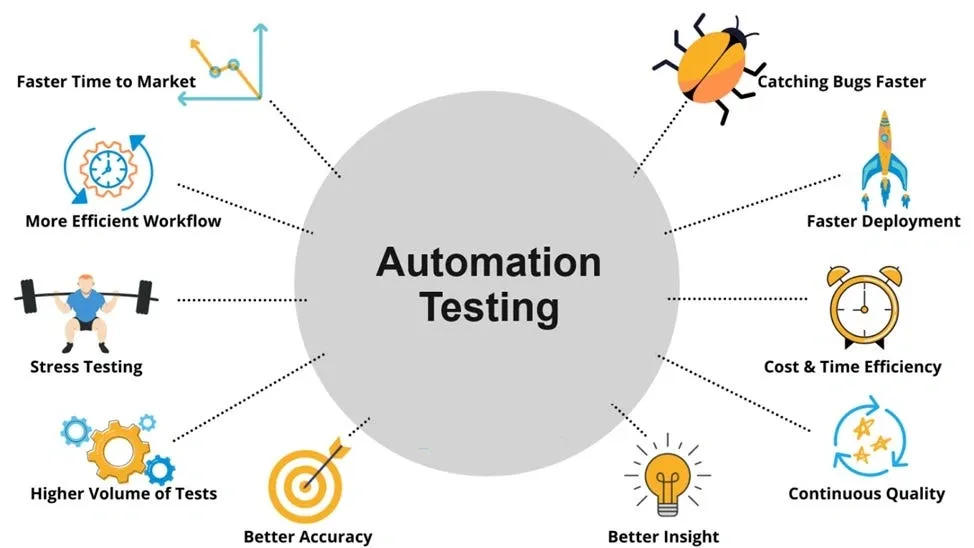
Image Source: Medium
After establishing a foundation with Playwright’s core concepts, we now turn to constructing a real-world project that showcases practical automation scenarios. Most web applications require authentication, section navigation, and multi-tab interactions—fundamental skills for creating robust test automation.
Automating Login with Valid Credentials
Authentication handling forms the cornerstone of testing protected application areas. Playwright provides sophisticated approaches to authentication that eliminate redundant login steps across test cases.
The most direct approach involves creating a test that interacts with login form elements:
test('login with valid credentials', async ({ page }) => {
  // Navigate to login page
  await page.goto('https://github.com/login');

  // Fill credentials
  await page.getByLabel('Username or email address').fill('username');
  await page.getByLabel('Password').fill('password');

  // Submit form and wait for navigation
  await page.getByRole('button', { name: 'Sign in' }).click();

  // Verify successful login
  await expect(page.getByRole('button', { name: 'View profile and more' })).toBeVisible();
});
For optimal test efficiency, Playwright enables storing and reusing authentication state. This methodology dramatically reduces test execution time by eliminating repetitive login procedures. Create an authentication setup file:
// tests/auth.setup.ts
import { test as setup } from '@playwright/test';

const authFile = 'playwright/.auth/user.json';

setup('authenticate', async ({ page }) => {
  await page.goto('https://github.com/login');
  await page.getByLabel('Username or email address').fill('username');
  await page.getByLabel('Password').fill('password');
  await page.getByRole('button', { name: 'Sign in' }).click();
  await page.waitForURL('https://github.com/');

  // Store authentication state
  await page.context().storageState({ path: authFile });
});
Then configure your test suite to utilize this stored state:
// playwright.config.ts
use: {
  storageState: 'playwright/.auth/user.json',
}
Navigating to a Section and Verifying Text
Post-authentication, tests typically require navigation through the application and content verification. Playwright handles these navigation events with remarkable precision:
test('navigate to profile page', async ({ page }) => {
  // Navigate to user settings
  await page.goto('https://github.com/settings/profile');

  // Verify the URL
  await expect(page).toHaveURL(/.*settings/profile/);

  // Verify page heading
  const heading = page.getByRole('heading', { name: 'Public profile' });
  await expect(heading).toBeVisible();
});
For complex navigation patterns that trigger asynchronous processes, Playwright implements multiple waiting strategies:
page.waitForURL()– monitors navigation to a specific URLpage.waitForLoadState()– awaits a specific loading state (‘load’, ‘domcontentloaded’, ‘networkidle’)expect().toBeVisible()– automatically waits for elements to appear
These strategies effectively prevent flaky tests by confirming the page has reached the expected state before proceeding with subsequent actions.
Handling New Tabs and Returning to Parent Page
Modern web applications frequently open content in new tabs. Playwright excels at managing these multi-tab scenarios with precise control.
To capture and interact with a new tab opened by clicking a link:
test('handle new tab', async ({ page }) => {
  await page.goto('https://example.com');

  // Start waiting for popup before clicking
  const popupPromise = page.waitForEvent('popup');
  await page.getByText('Open in new tab').click();

  // Get the popup page object
  const newPage = await popupPromise;

  // Wait for new page to load
  await newPage.waitForLoadState();

  // Verify content in new tab
  await expect(newPage.getByRole('heading')).toContainText('New Page');

  // Return to parent page and continue
  await page.bringToFront();
  await page.getByText('Continue').click();
});
This pattern ensures complete control over all browser tabs throughout test execution. The page.waitForEvent('popup') method creates a promise that resolves when a new tab opens, allowing your test to capture and interact with the new context.
After completing operations in the secondary tab, page.bringToFront() returns focus to the original page, creating a seamless testing experience across multiple browser contexts.
Playwright Features That Make Testing Easier

Image Source: MuukTest
Playwright’s architecture includes several engineered features that fundamentally transform test reliability and efficiency. These technical capabilities directly address common automation pain points through systematic solutions rather than workarounds.
Auto-Waiting and Timeout Handling
The auto-waiting mechanism in Playwright eliminates one of the most persistent challenges in test automation—timing synchronization. Unlike conventional frameworks that require explicit waits or sleep statements, Playwright implements a sophisticated system of “actionability checks” before executing any interaction.
When a test executes a click() operation, Playwright automatically verifies that the element meets several critical conditions:
- Visual presence in the viewport
- Stability (absence of animation)
- Event reception capability (not covered by other elements)
- Enabled state (not disabled via HTML attributes)
This systematic approach happens without additional code requirements:
// Playwright handles all waiting conditions automatically
await page.getByRole('button', { name: 'Submit' }).click();
The framework offers multi-level timeout configurations that provide precise control:
- Test timeout: 30,000ms default for each complete test
- Expect timeout: 5,000ms default for assertions
- Action timeout: Configurable for individual operations
These timeouts can be modified globally through configuration:
// In playwright.config.ts
export default defineConfig({
  timeout: 60000,  // Test timeout in milliseconds
  expect: {
    timeout: 10000  // Assertion timeout in milliseconds
  }
});
Or adjusted for specific operations when necessary:
// Override timeout for a specific assertion
await expect(page.locator('button')).toBeVisible({ timeout: 10000 });
This design effectively eliminates the anti-pattern of arbitrary waits (page.waitForTimeout()) that typically introduce brittleness and unpredictability into test suites.
Parallel Execution with Browser Contexts
Playwright implements a sophisticated parallelism model that significantly reduces execution time for comprehensive test suites. This parallelism functions at two distinct levels:
- File-level parallelism: Test files execute concurrently by default
- Test-level parallelism: Tests within a file can run simultaneously with proper configuration
To implement full parallel execution within test files:
test.describe.configure({ mode: 'parallel' });

// or in your config file
export default defineConfig({
  fullyParallel: true
});
Browser contexts form the foundation of Playwright’s isolation architecture. Each context represents a completely segregated browser session (analogous to an incognito window) with independent:
- Cookies
- Local storage
- Session data
// Create isolated browser contexts
const context1 = await browser.newContext();
const context2 = await browser.newContext();

// Create pages in each context
const page1 = await context1.newPage();
const page2 = await context2.newPage();
This isolation architecture enables testing multiple user scenarios concurrently without cross-contamination—particularly valuable when testing different permission levels or account states. The independent session management creates ideal conditions for reliable parallel test execution.
Video and Screenshot Capture for Debugging
Playwright integrates visual debugging capabilities that transform troubleshooting efficiency when tests fail. These tools provide objective evidence of test execution rather than relying solely on logs or assertions.
Video recording configuration requires a simple configuration modification:
// In playwright.config.ts
use: {
  video: 'on-first-retry',  // Only record video on first retry
  // Other options: 'on', 'off', 'retain-on-failure'
}
The framework provides multiple recording strategies:
'off': No recording (default)'on': Record all tests'retain-on-failure': Record all tests but preserve only failed test recordings'on-first-retry': Record only during test retry attempts
All videos save automatically to the test output directory (typically test-results). Video dimensions can be customized:
use: {
  video: 'on',
  videoSize: { width: 640, height: 480 }
}
For static visual analysis, Playwright provides both standard capture and automated comparison:
// Manual screenshot
await page.screenshot({ path: 'screenshot.png', fullPage: true });

// Visual comparison (will fail if visual appearance changes)
await expect(page).toHaveScreenshot('expected-ui.png');
The toHaveScreenshot() method creates a powerful foundation for visual regression testing by automatically comparing current state against reference images and highlighting precise differences.
These evidence-based debugging tools provide clear visual documentation of test execution, substantially improving the efficiency of issue identification, flow analysis, and failure resolution.
Best Practices for Scalable Playwright Automation
The scientific approach to Playwright automation requires more than simply writing functional test scripts. Creating sustainable, maintainable test suites demands methodical design patterns and structural considerations. The following evidence-based practices will help you build test suites that scale with your application and remain robust through continuous development cycles.
Implementing Hooks for Setup and Teardown
Playwright’s hook system provides a structured approach to handling repetitive operations without cluttering individual test cases. These hooks function as controlled entry and exit points in your test execution flow:
// Global setup before all tests
test.beforeAll(async ({ browser }) => {
  // Initialize shared resources
});

// Setup before each test
test.beforeEach(async ({ page }) => {
  await page.goto('https://github.com/login');
  await page.getByLabel('Username').fill('username');
});

// Cleanup after each test
test.afterEach(async ({ page }) => {
  // Reset application state
});

// Global cleanup after all tests
test.afterAll(async () => {
  // Release shared resources
});
For complex initialization requirements, Playwright offers two methodologies: project dependencies and global setup configurations. Project dependencies represent the preferred approach as they integrate seamlessly with Playwright’s reporting system, trace recording, and fixture mechanism. This integration ensures your setup code appears correctly in HTML reports and provides consistent debugging capabilities.
Ensuring Test Independence and Isolation
Test isolation constitutes a fundamental principle in scientific test automation. Each test must operate as an independent experimental unit with its own controlled environment, including isolated storage, cookies, and state information. This isolation prevents cascading failures and creates a controlled testing environment where variables from one test cannot contaminate another.
Playwright implements this isolation through browser contexts—essentially incognito browser profiles with completely separate environments:
test('maintains isolation from other tests', async ({ context }) => {
  const newPage = await context.newPage();
  // Each test receives a fresh context automatically
});
This contextual isolation ensures that tests remain truly independent, creating a more reliable and maintainable test suite. While some code duplication might occur for test clarity, you can minimize repetition through strategic use of the aforementioned hooks for common setup tasks.
Developing Custom Locators and Assertions
Custom assertions and locators transform your test code into a domain-specific language that precisely models your application’s behavior. These custom elements improve readability, reduce maintenance costs, and enhance test precision by encapsulating complex verification logic:
// Add custom expect matcher
expect.extend({
  toBeValidDate(received) {
    const pass = !isNaN(Date.parse(received));
    return {
      pass,
      message: () => `Expected ${received} to be a valid date`
    };
  }
});

// Using custom assertion
await expect(page.locator('.date-field')).toBeValidDate();
While Playwright doesn’t support direct Locator subclassing, composition patterns provide an effective alternative. By creating wrapper classes that encapsulate element interactions, you can build domain-specific utilities that make your tests more expressive and maintainable.
These evidence-based practices create a foundation for scalable test automation that grows alongside your application. The scientific approach to test architecture ensures your tests remain valuable assets rather than maintenance burdens as your application evolves.
Integrating Playwright with CI/CD Pipelines

Image Source: Medium
Playwright delivers maximum value when integrated into continuous integration and delivery pipelines. This strategic integration creates an automated verification system that identifies issues before they reach production environments, substantially reducing defect escape rates.
GitHub Actions Implementation
GitHub Actions provides an ideal platform for executing Playwright tests with every code change. The implementation requires a workflow configuration file at .github/workflows/playwright.yml:
name: Playwright Tests
on:
  push:
    branches: [ main, master ]
  pull_request:
    branches: [ main, master ]
jobs:
  test:
    timeout-minutes: 60
    runs-on: ubuntu-latest
    steps:
      - uses: actions/checkout@v4
      - uses: actions/setup-node@v4
        with:
          node-version: lts/*
      - name: Install dependencies
        run: npm ci
      - name: Install Playwright Browsers
        run: npx playwright install --with-deps
      - name: Run Playwright tests
        run: npx playwright test
      - uses: actions/upload-artifact@v4
        if: ${{ !canceled() }}
        with:
          name: playwright-report
          path: playwright-report/
          retention-days: 30
Report Generation Strategies
Playwright supports multiple reporting formats that align with established CI/CD processes. HTML reports provide comprehensive visual feedback on test execution:
import { defineConfig } from '@playwright/test';
export default defineConfig({
  reporter: [
    ['html', { outputFolder: 'playwright-report' }]
  ],
});
import { defineConfig } from '@playwright/test';
export default defineConfig({
  reporter: [
    ['junit', { outputFile: 'test-results.xml' }]
  ],
});
The reporting mechanism can adapt to different environments through conditional configuration:
reporter: process.env.CI ? 'github' : 'list',
Docker Container Execution
Docker containers create isolated, consistent testing environments that eliminate platform-specific inconsistencies. Microsoft maintains official Playwright Docker images with pre-configured dependencies:
# In GitHub Actions
jobs:
  playwright:
    runs-on: ubuntu-latest
    container:
      image: mcr.microsoft.com/playwright:v1.52.0-noble
    steps:
      - uses: actions/checkout@v4
      - name: Install dependencies
        run: npm ci
      - name: Run tests
        run: npx playwright test
For local Docker execution, create a custom image that encapsulates your test suite:
FROM mcr.microsoft.com/playwright:v1.52.0-noble
WORKDIR /app
COPY . .
RUN npm ci
CMD npx playwright test
The integration of Playwright with CI/CD pipelines creates a systematic verification framework that continuously validates application behavior with every code change. This scientific approach to testing transforms quality assurance from periodic manual intervention to continuous automated validation, substantially improving development efficiency while maintaining rigorous quality standards.
Conclusion
The scientific approach to test automation reveals Playwright’s distinct advantages in the modern testing landscape. Though relatively new, Playwright has gained remarkable traction due to its technical architecture and thoughtful design philosophy. The framework’s multi-language support across Java, Python, C#, and JavaScript/TypeScript removes traditional barriers for teams migrating from older automation tools like Selenium.
Playwright addresses common automation pain points through measurable technical improvements. The auto-waiting mechanism eliminates flaky tests by performing comprehensive actionability checks before element interactions. Parallel execution capabilities significantly reduce test suite runtime, while browser contexts provide isolated environments that prevent test interdependence issues.
The framework’s direct communication with browsers through the DevTools protocol, rather than intermediate translation layers, creates more stable test execution. This architectural decision improves reliability by establishing a single WebSocket connection to rendering engines—a fundamental difference from conventional testing tools.
Playwright’s active development community continues to enhance the framework, as evidenced by its 94 releases and 1.2+ million weekly downloads. Teams implementing Playwright benefit from built-in reporting options, TypeScript integration, and cross-browser compatibility across Chromium, Firefox, and WebKit environments.
The visual debugging capabilities, including video recording and screenshot comparison, provide concrete evidence of test execution that simplifies troubleshooting. These tools transform abstract test failures into visible, reproducible issues that development teams can address efficiently.
Whether implementing your first automated test or scaling a comprehensive test suite, Playwright provides the technical foundation necessary for reliable, efficient web testing. The framework’s combination of performance, flexibility, and developer experience makes it particularly well-suited for testing modern web applications.
FAQs
Q1. Is Playwright easy to learn for automation testing?
Playwright is relatively easy to learn, especially for those with prior programming experience. Its intuitive API and comprehensive documentation make it accessible for beginners while offering powerful features for advanced users.
Q2. How long does it typically take to learn Playwright?
The time to learn Playwright varies depending on your background, but many can grasp the basics within a few weeks. With dedicated practice, you can become proficient in Playwright automation in about 3-6 months.
Q3. What are the key features that make Playwright stand out for automation?
Playwright’s standout features include its auto-waiting mechanism, parallel execution capabilities, browser context isolation, and built-in debugging tools like video recording and screenshots. These features contribute to creating more stable and efficient test suites.
Q4. Can Playwright be easily integrated into CI/CD pipelines?
Yes, Playwright integrates seamlessly with popular CI/CD tools. It offers built-in support for generating reports in various formats and can be easily configured to run in containerized environments like Docker, making it ideal for continuous testing workflows.
Q5. What programming languages does Playwright support?
Playwright supports multiple programming languages including JavaScript, TypeScript, Python, Java, and C#. This multi-language support makes it versatile and accessible for teams with diverse technology stacks.
